


Setting Up Your Meeting Location
Setting up your default meeting location ensures that every session booked with you — whether through a one-on-one event, an application funnel interview, or a direct booking from your profile — automatically includes the right meeting link or address. You only need to configure this once.
Where to Find Meeting Location Settings
There are two places involved depending on the approach you choose:
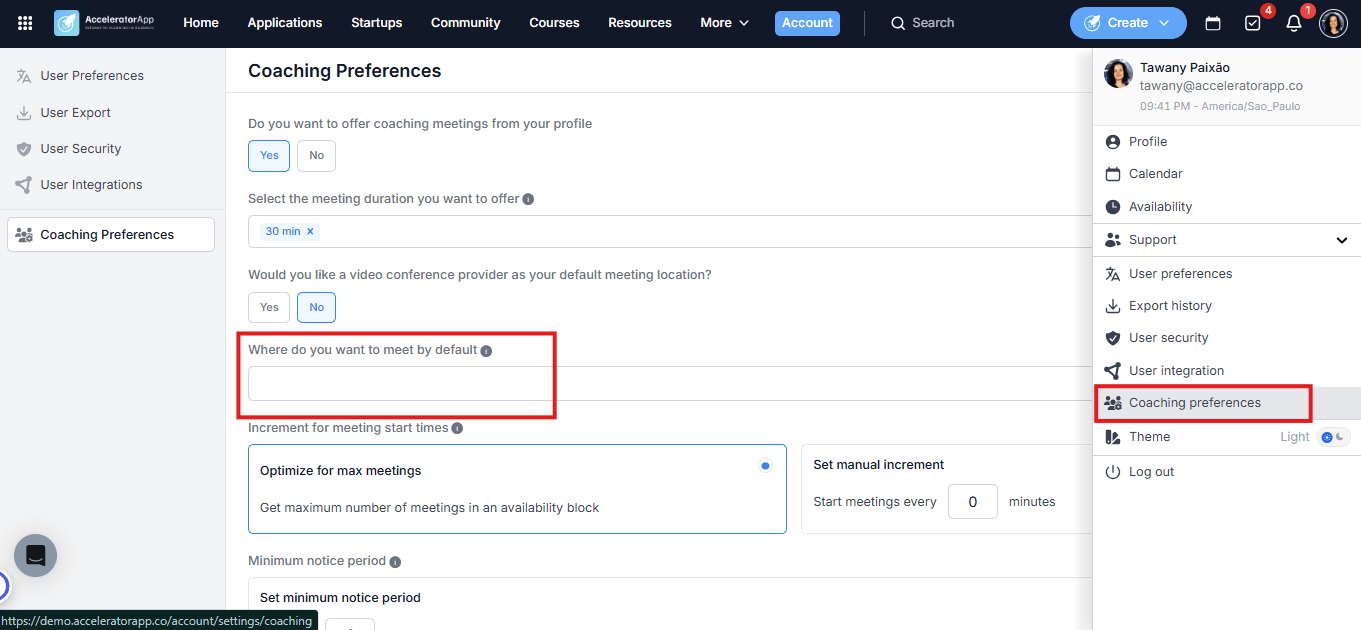
- Fixed link — go to your profile picture in the top-right corner and select Coaching Preferences. Look for Where do you want to meet by default?
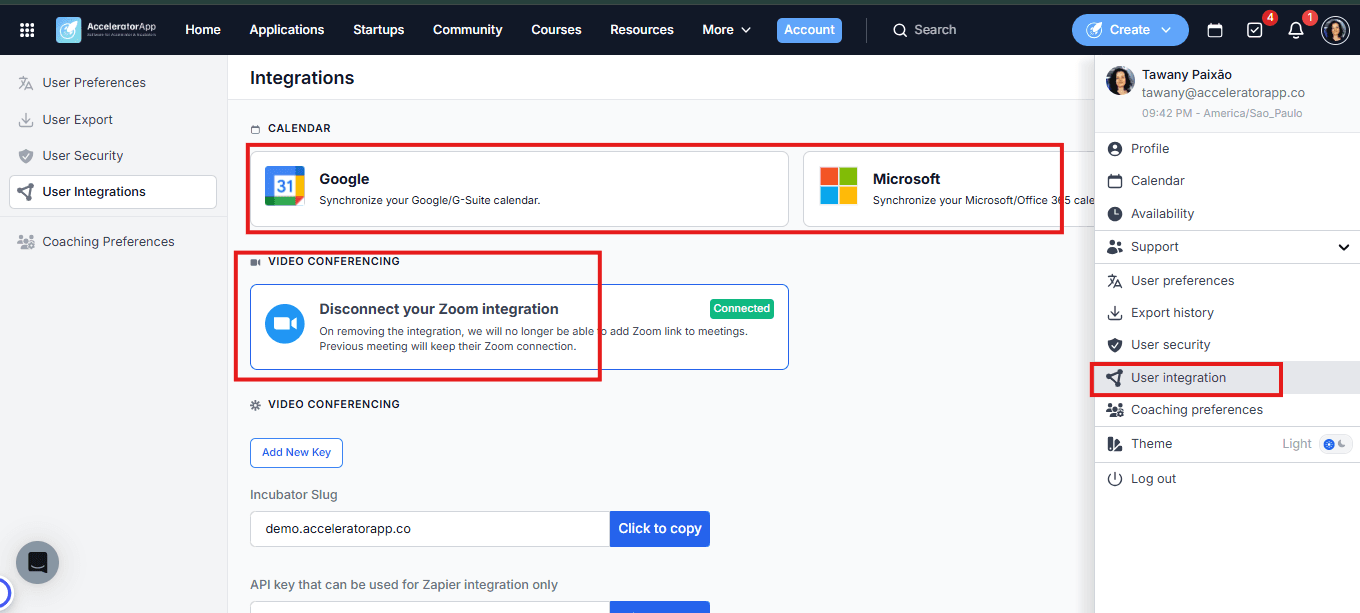
- Video conferencing integration — go to your profile picture and select User Integrations.
Step-by-Step
1. Choose Your Approach
Decide how you want your meeting links to work:
- Fixed link — you define one link that will be used for every session. Best if you have a permanent room (e.g. a recurring Zoom link or a dedicated Google Meet URL) and prefer simplicity.
- Video conferencing integration — a new unique link is generated automatically each time a session is booked with you. Available with Zoom, Google Meet (via Google Calendar integration), or Microsoft Teams (via Microsoft Calendar integration).
2. Option A — Set a Fixed Link
- Go to your profile picture → Coaching Preferences.
- Under Where do you want to meet by default?, paste your fixed meeting link.
- Click Save.
Every meeting booked with you will use this same link.
3. Option B — Connect a Video Conferencing Integration
- Go to your profile picture → User Integrations.
- Connect one of the following:
- Zoom — connect directly under the Video Conferencing section.
- Google Meet — connect your Google Calendar. This automatically enables Google Meet, with no additional setup needed.
- Microsoft Teams — connect your Microsoft Calendar. This automatically enables Microsoft Teams in the same way.
Once connected, every new meeting booked with you will automatically include a freshly generated link from your chosen tool.
Google Meet and Microsoft Teams are activated through their respective calendar integrations — there is no separate step to connect them as a video tool.
Where This Location Is Applied
The location you configure will be used automatically across all meeting types:
- Meetings booked by founders directly from your profile.
- Sessions scheduled through one-on-one events.
- Interview meetings generated within an application funnel where you have been pre-assigned by an admin.
Best Practices
- Choose the approach that matches how you work. If you use the same virtual room for all sessions, a fixed link is simpler. If you prefer a fresh link for each booking for security or organizational reasons, use an integration.
- Google Meet and Teams require no extra step beyond the calendar connection. Once your Google or Microsoft calendar is linked, the video tool is ready automatically.
- Keep your default location up to date. If you switch tools or change your fixed link, update your Coaching Preferences promptly to avoid sending outdated links to founders.